Sending messages
Learn how to exchange messages with team members through direct messages, group chats and channels.
Hanzo Team offers many options for team members to communicate directly within the Hanzo Team without the need for an external app. Hanzo Team’s chat functionality allows team members to exchange messages in real time through direct messaging and shared channels.
This guide covers how to exchange messages with your team using Chat. Chat is also integrated with the rest of your workspace, so documents, issues, pull requests and other workspace objects can be accessed alongside your other conversations. For more on how Chat integrates other workspace activity, see our guide on activity tracking in chat.
Ways to chat
There are a few different ways to chat with team members on Hanzo Team:
- Channels - Public or private chatrooms based on topics or themes
- Direct messages - Instant messaging between individuals or groups
- Other workspace objects - From Chat, you can access all activity on documents, issues, files and more. Read more in our guide on activity tracking in chat.
Icons and indicators:
- A red dot beside the chat indicates an unread message.
- A green dot next to a user's avatar indicates that they are online and have their Hanzo Team workspace open.
Open Chat from the app rail to see the navigator: Threads, Saved, and Browser at the top, then your Channels and Direct messages. The blue + button starts a new channel or DM.
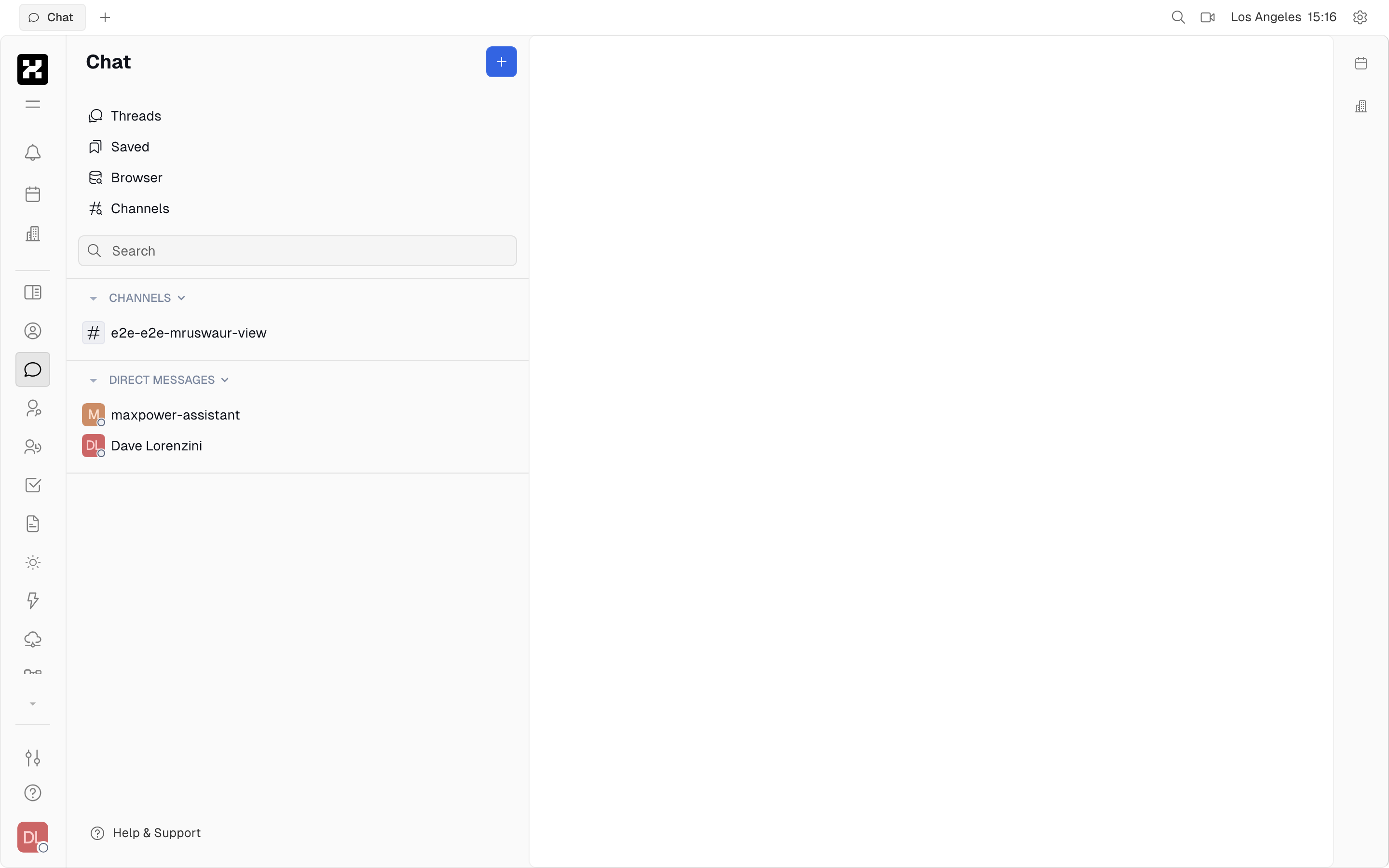
The Chat navigator: Channels and Direct messages, with the blue + to start a new conversation.
On mobile: the navigator and the open conversation are separate panes — tap a channel or DM to open it, and use back to return to the list.
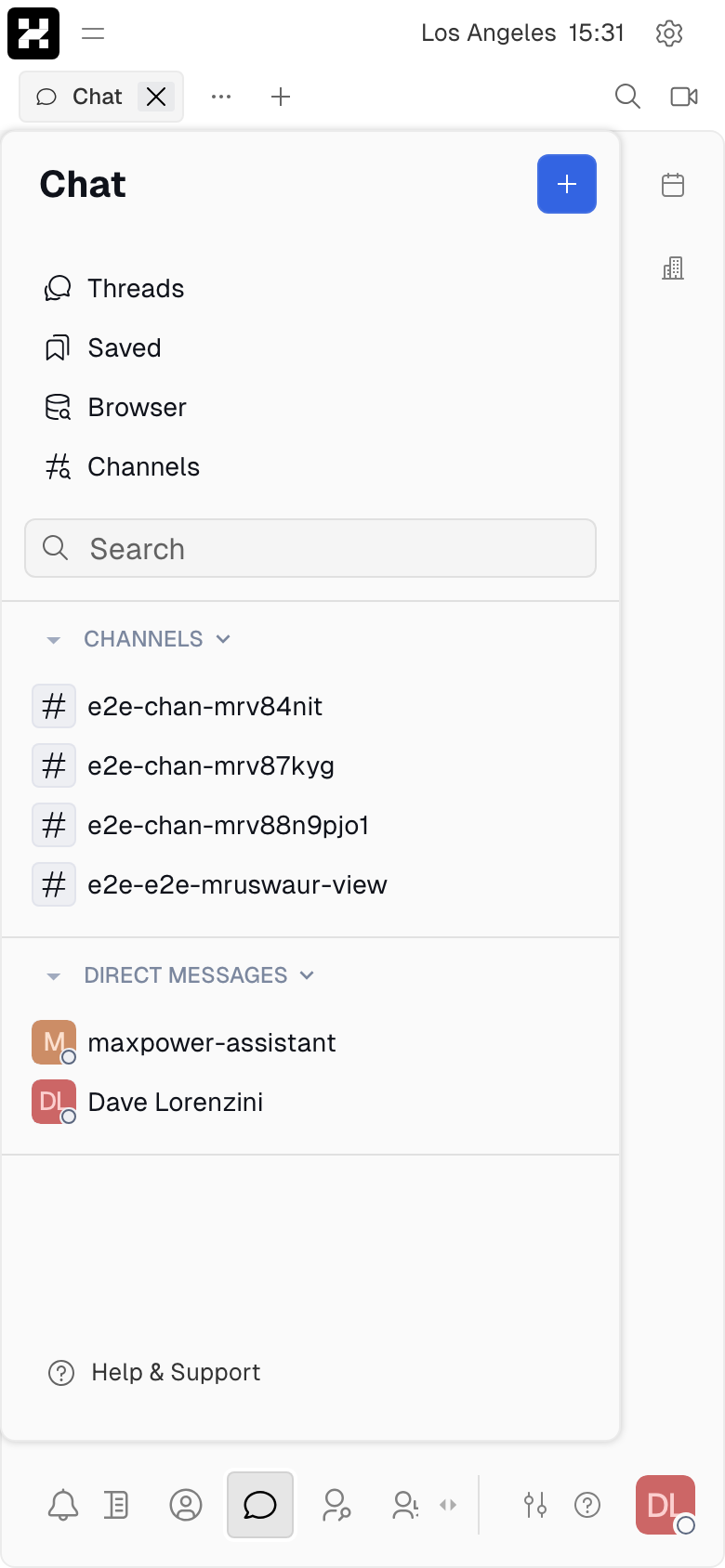
The Chat navigator on a phone.
Managing chat channels
Create a new channel by clicking the + button at the top of the Chat sidebar and selecting New channel. Enter a name and topic for your channel and select either Public or Private for visibility. Click Create.
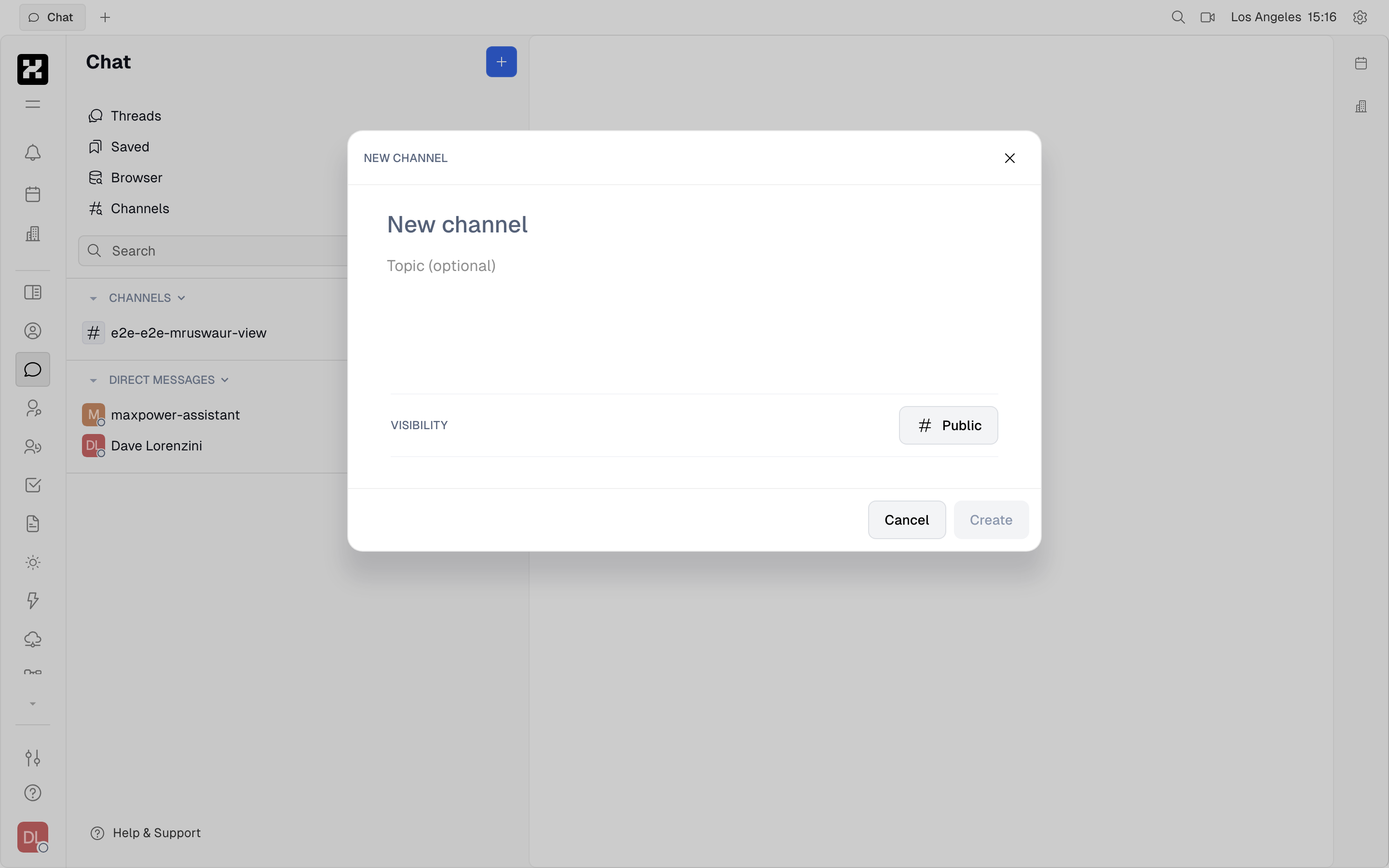
The New Channel dialog: give the channel a name, an optional topic, and set its visibility (Public or Private).
Note: Channels set to
Privateare still visible in the channels list, but users will need to request access to join. To create chats that are not visible to the rest of the team, create a group direct message with the included members (see below).
After you've created your channel, there will be a few additional settings available in the right sidebar:
- Name - Set the name for the channel.
- Private - Private channels are visible to members only.
- Auto join - Toggle this setting to automatically add all new workspace members to this channel. This will not add existing workspace members; only members who join after this setting is enabled will be added to the channel.
- Members - Add or remove members from the channel.
- Topic - Edit the topic (description) for the channel.
To leave a channel, hover over the channel name in the sidebar and click the settings menu, then click Leave channel, or navigate to "Channels", right-click on the channel name and select Leave.
To archive a channel, you must be owner or creator of the workspace. Archive a channel either by selecting Archive channel from the settings menu, or right-clicking the channel name in "Channels" and selecting Archive channel.
Note: Two channels are created by the system when you create the workspace:
#generaland#random. In order to archive these system-generated channels, you must be a Spaces Admin. For more on permissions, including how to set Spaces Admins, see our guide on roles.
Star a channel by selecting Star in the settings menu. Starred channels will appear at the top of the list in the left sidebar.
Creating direct and group messages
Create a new direct message by clicking the + button at the top of the Chat sidebar and selecting New direct chat. Select the user you'd like to chat with and click Create. Selecting more than one user will create a group chat.
To close a direct or group message and remove it from your sidebar, hover over the chat in the sidebar and open the settings menu, then click Close conversation. Closing the conversation does not remove the message history, so your existing messages will still be available when you reopen the chat.
Sending a message
Open a channel or DM and type in the composer at the bottom. Messages post in real time, each stamped with the sender and time. The composer's toolbar adds attachments, video, @mentions, emoji, and text templates:
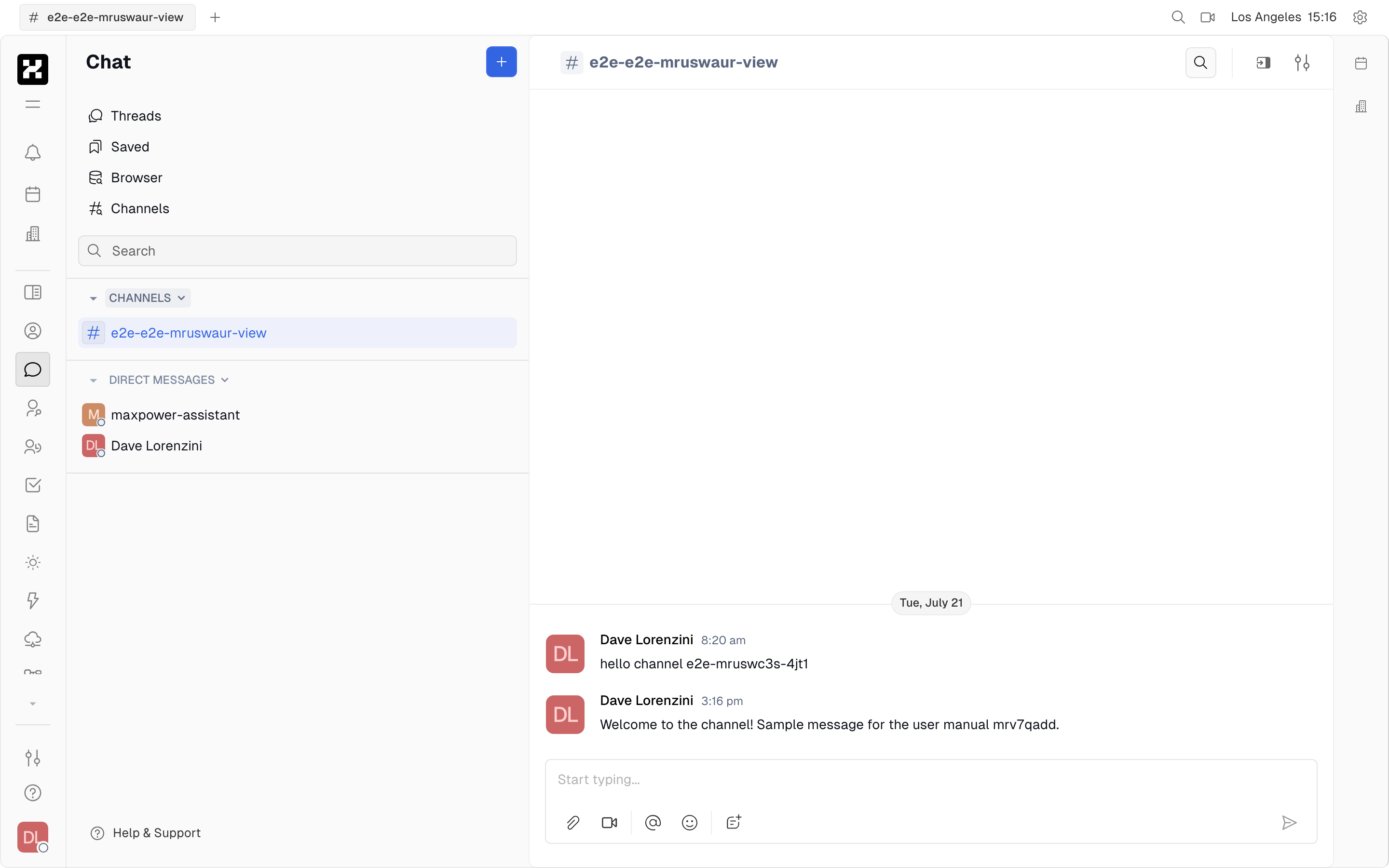
A channel with posted messages and the composer at the bottom.
On mobile: the open conversation fills the screen; the composer stays pinned to the bottom.
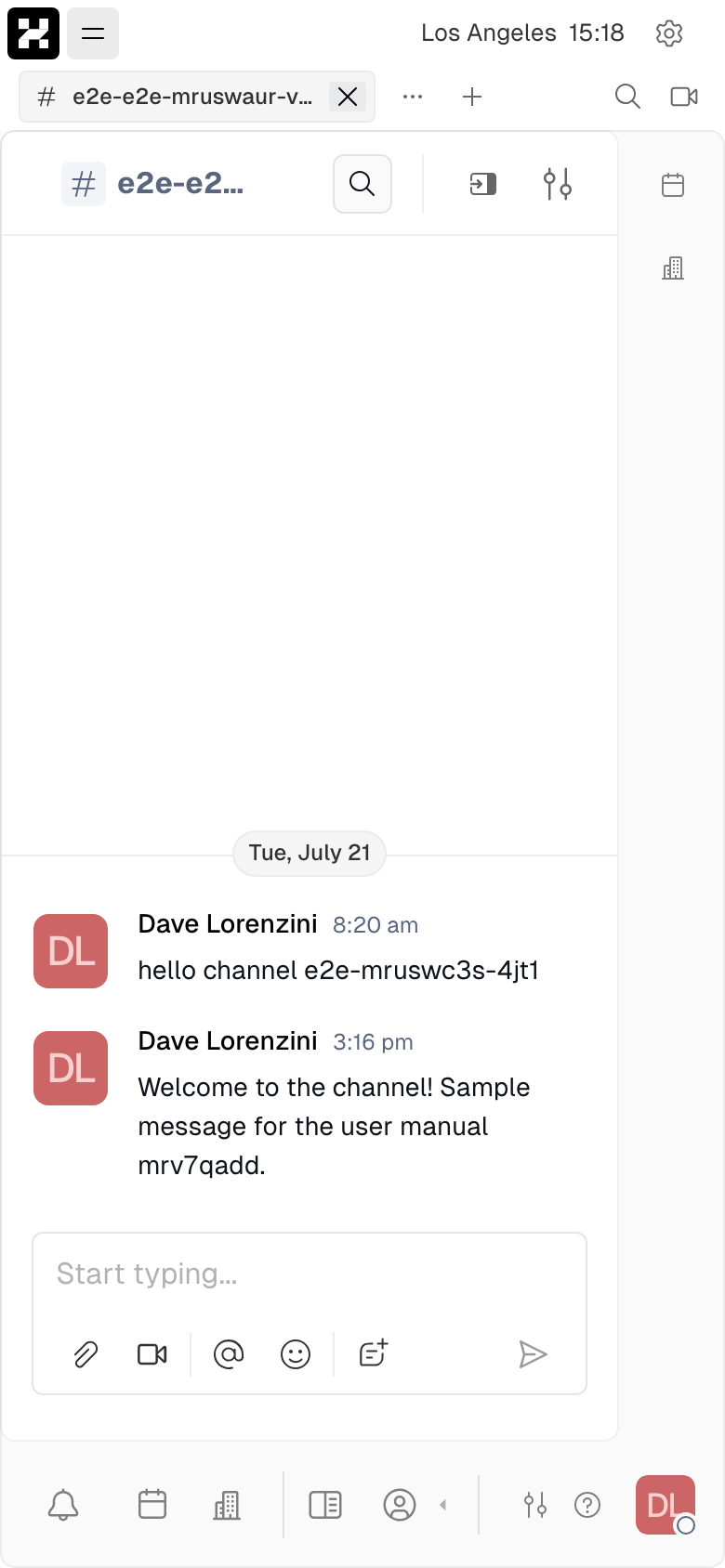
A channel conversation on a phone.
Chat options
Like everywhere else in your Hanzo Team workspace, chat messages support markdown formatting, attachments, mentions, emojis and text templates.
Hover over any message to add a reaction, pin it to the top of the chat, or reply in a chat thread:
Bookmark any message to save it for later. See all saved messages in the Saved tab in the Chat sidebar:
Translating messages
To translate a message, simply hover over the message and click the translate icon. This will translate the message into the language you have selected for your workspace.
To restore the original message, hover again and click 'Show original'.
Chatting in the sidebar
Any chat can be moved to the right sidebar by clicking the "Open in sidebar" button in the top right corner of the chat. You can open multiple threads, channels and DMs here for easy access as you navigate the platform. The chat panel can be hidden by clicking the chat icon in the far right menu.
Your calendar and virtual office can also be accessed through the right sidebar. Check it out!