Drive
Learn how to use Drive for file storage and sharing.
Drive is a robust and versatile file storage system fully customizable to your team's needs. Store any type of file directly within your workspace and keep everything organized with customizable folders and privacy settings. Files stored in Drive are easily accessible for viewing, printing and downloading, allowing teams to efficiently share resources and promote collaboration. Teams can add members to specific Drive spaces, ensuring everyone has access to the files they need without compromising security.
Creating your Drive
Your Hanzo Team workspace comes with one existing Drive called "Records"; however, you can add as many Drives as you'd like and customize them to suit the needs of your team.
To create a Drive, click the dropdown arrow next to the + Upload File button and select Create Drive, or hover over the word "Drive" in the sidebar and click the + icon that appears. Enter a name and optional description for your Drive, select the owners and members, and toggle privacy settings. Then, click Create.
Open Drive from the app rail to see every drive you can access listed under Drive in the navigator:
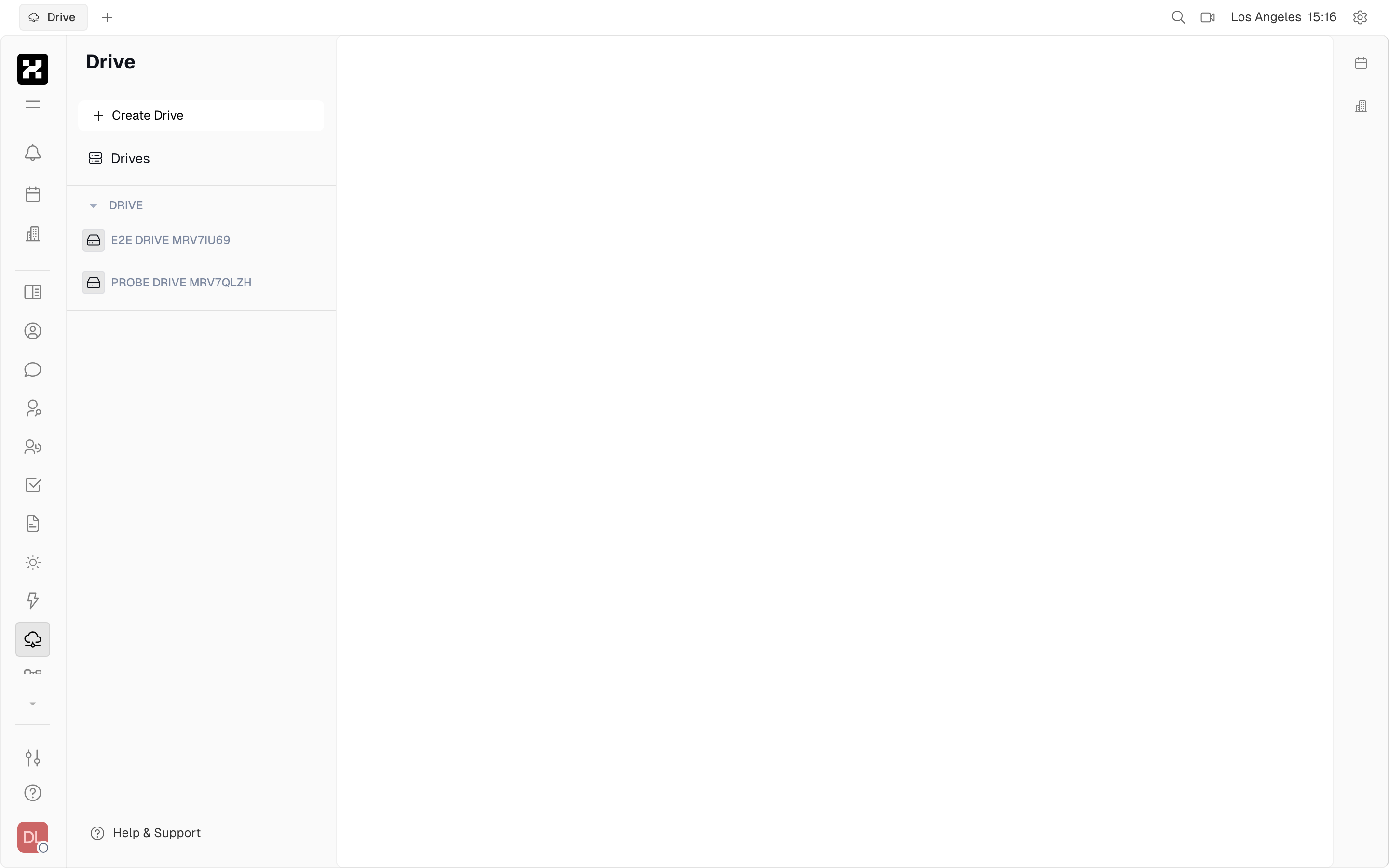
The Drive app with your drives listed in the navigator.
On mobile: the drives list scrolls in a single column; tap a drive to open it.
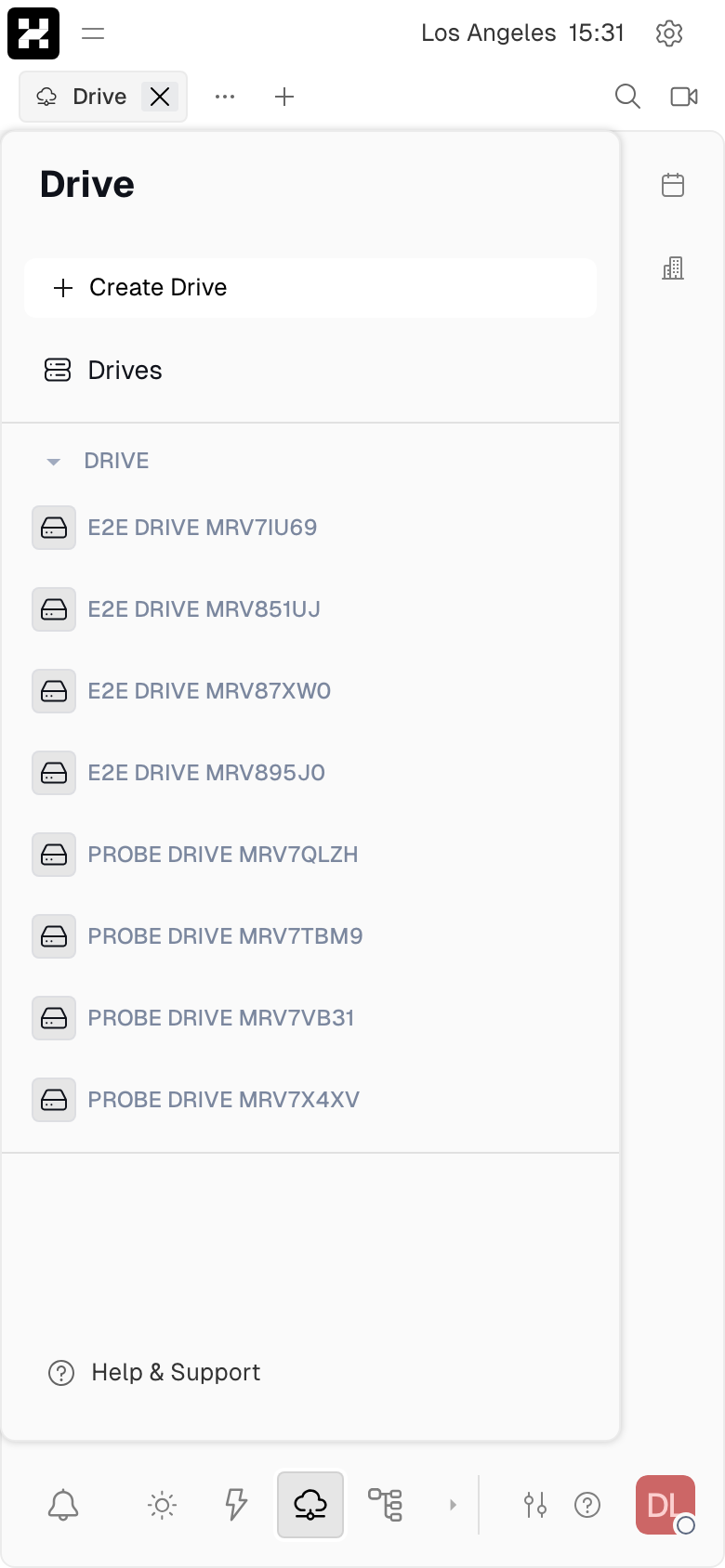
Your drives on a phone.
Adding folders
You can further organize your Drives into folders containing files. To create a new folder, click the breadcrumb icon that appears when hovering over the name of your Drive in the left sidebar. Alternatively, click the dropdown arrow next to the + Upload File button and select Create Folder. Enter a name for your folder and click Create.
Uploading files and folders
To upload a file or folder to your Drive, click the + Upload File button at the top of the Drive sidebar. Select the file or multiple files you'd like to upload from your computer, or drag and drop them into the upload area. Once the files have been uploaded, they will appear listed in your Drive.
Open a drive to see what's inside — each file lists its name, size, and who created it. Drives keep everything separated, so a team can spin up as many as it needs:
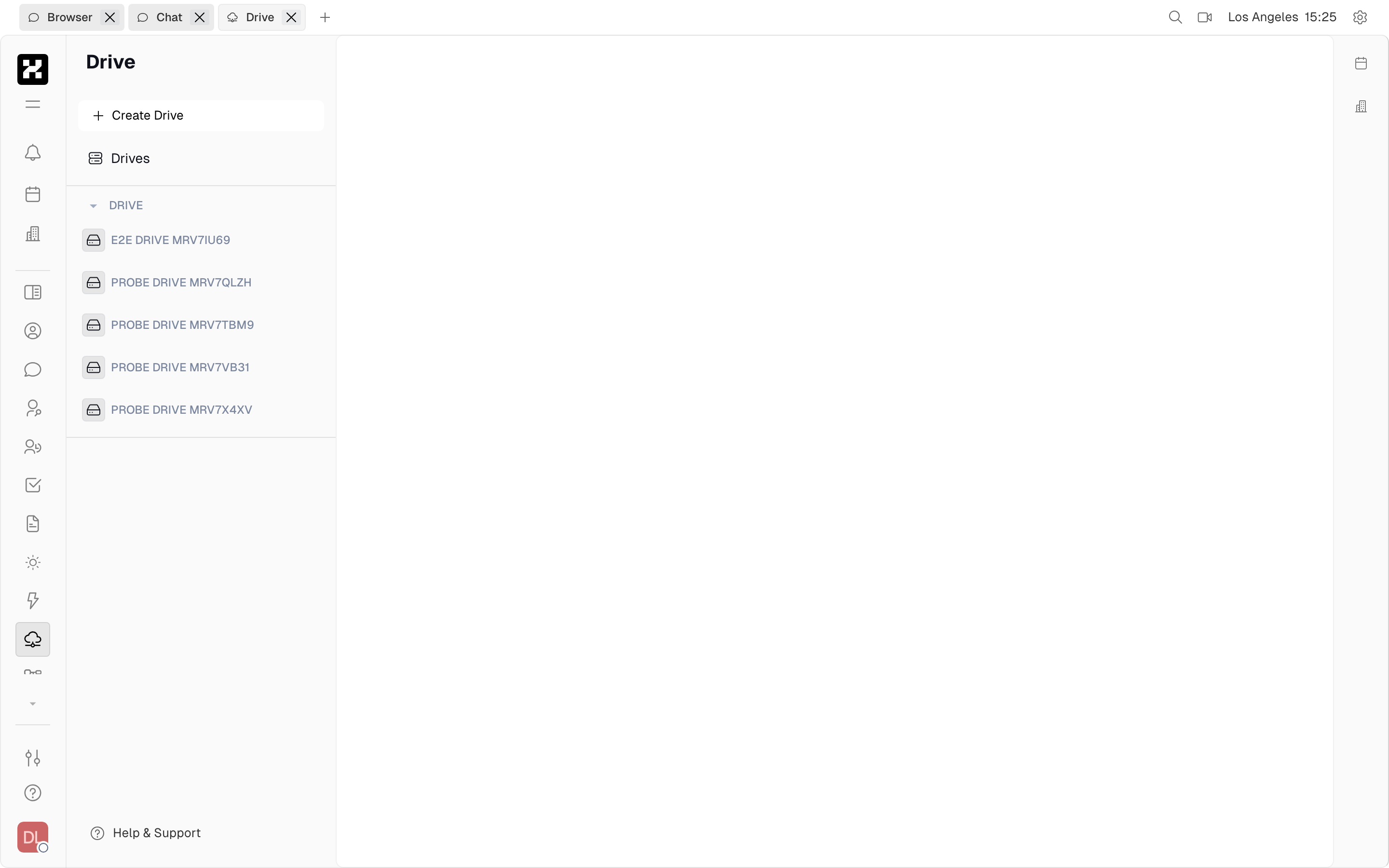
Open a drive to browse its contents; the workspace above holds several drives in the navigator.
On mobile: open a drive, then tap a file to preview, download, or share it.
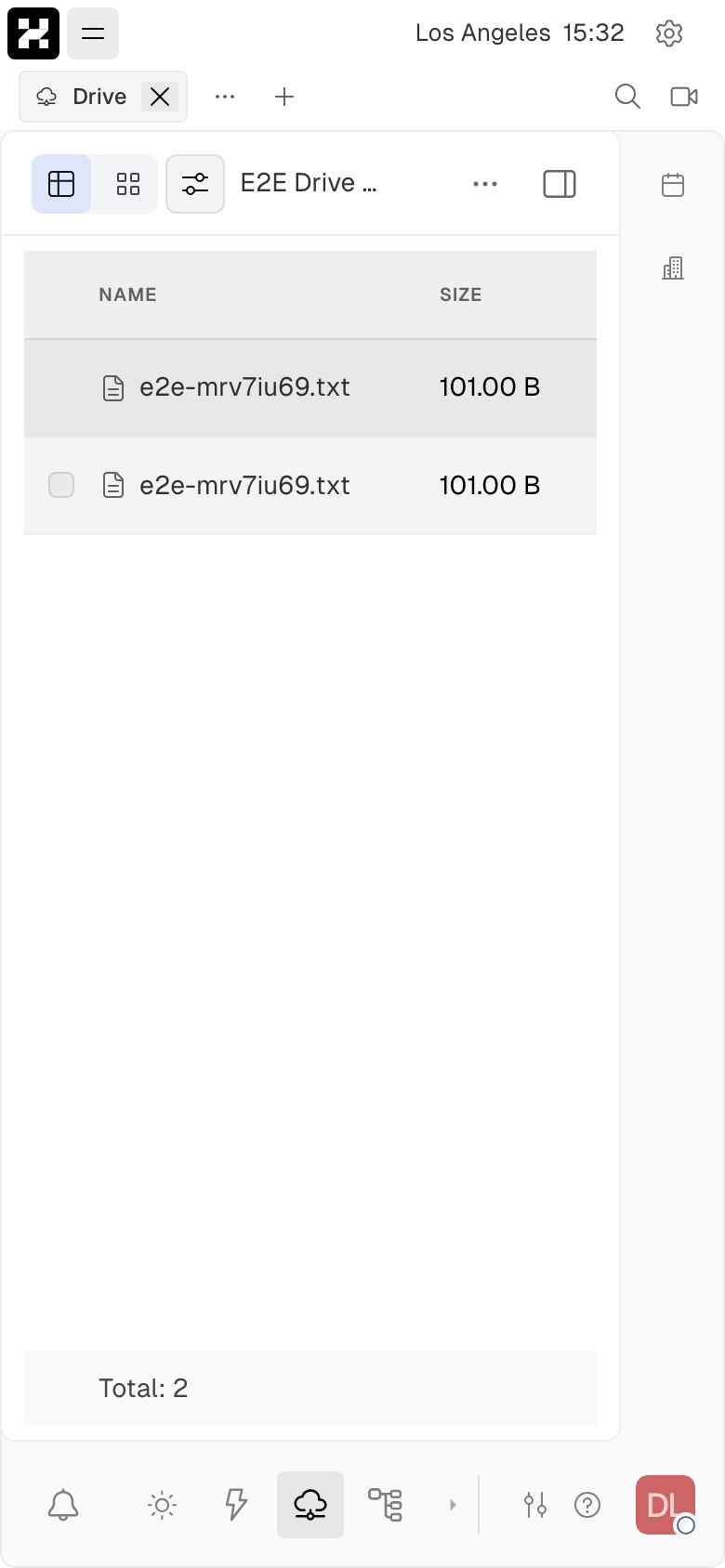
Browsing drives on a phone.
To view a file, click on the file name in your Drive. Several options are available for files in drive:
- Rename your file - open the right sidebar and click on the file name to rename it.
- Download - click the download icon to download the file to your computer.
- Move - open the settings menu and select
Moveto change the parent folder or Drive for your file.
Creating file versions
Hanzo Team automatically creates a record of a file versions when a new version is uploaded. After a file has been modified, it can be added to the original file as a new version using the upload button in the top right corner of any file preview. Each new version is listed under the original file for easy access:
Adding comments
You can add comments on files in the Activity section below the file preview. Just like anywhere else in the Hanzo Team, comments support markdown formatting, attachments, mentions, emojis and text templates. Comments can be used to provide feedback, ask questions, or discuss the contents of the file. Just like other objects in the Hanzo Team, activity related to files can be accessed from Chat as well, allowing you to keep track of discussions and changes all in one place.
See our guide on activity tracking in chat to learn more about how comments on your Drive files are connected to the rest of your workspace.