Organizations & workspaces
How organizations and workspaces relate, and how to switch between them.
Hanzo Team follows a Slack-style model for structuring teams: you sign in once with your Hanzo account and can belong to many places at once.
The model
- Organization — the top-level container for a company or group. Billing, plan, and org-wide membership live here.
- Workspace — a space inside an organization that holds projects, documents, channels, and everything else. An organization can have several workspaces (for example, one per department or product).
- Member — a person, identified by their Hanzo account, who belongs to one or more workspaces with a role in each.
Your single Hanzo identity spans every organization and workspace you're part of — there are no separate logins to juggle.
Switching
Use the account switcher at the top of the left sidebar to move between organizations and workspaces. Switching is instant and does not sign you out — your session carries across all of them, the same way you'd switch between Slack workspaces.
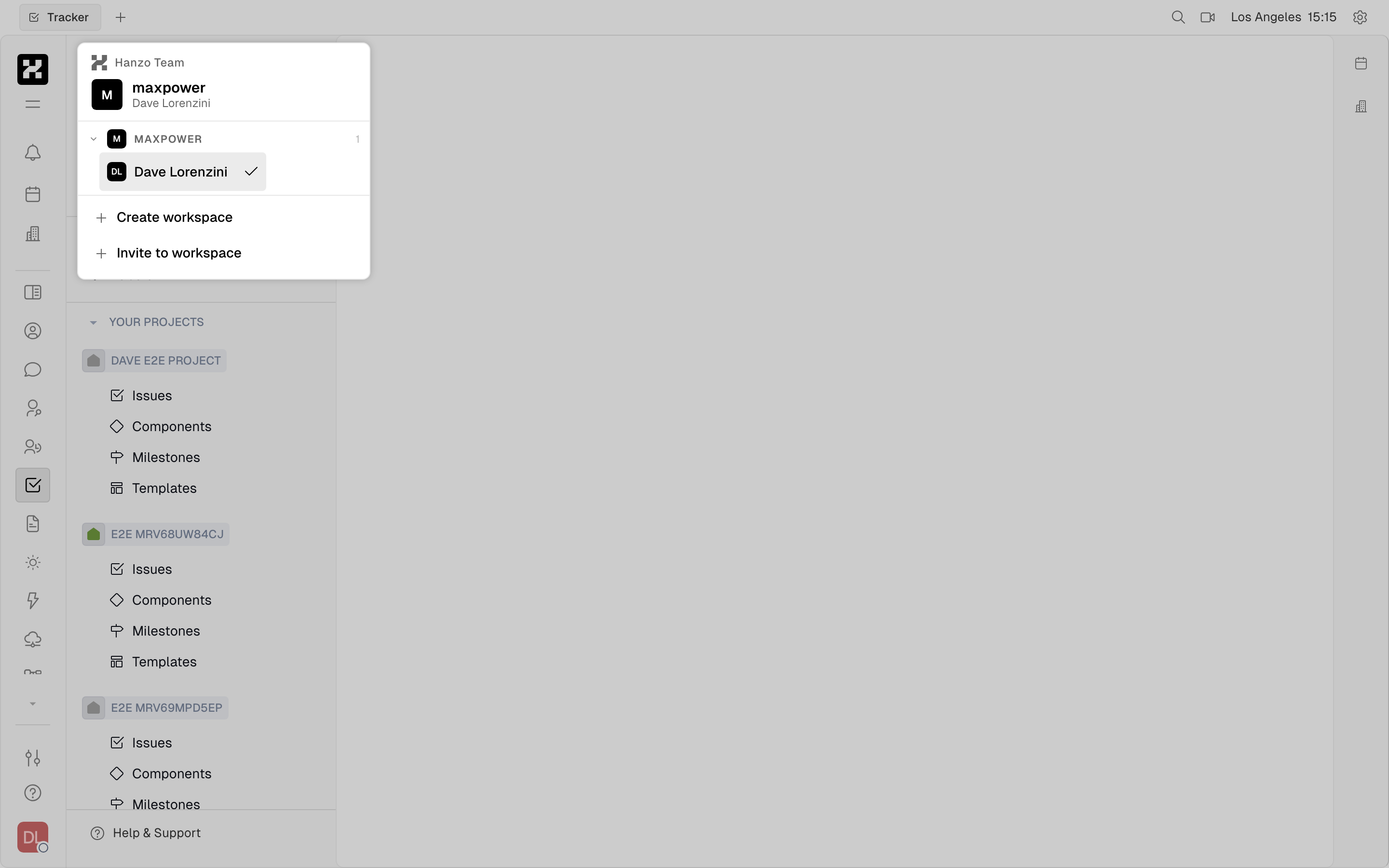
The switcher groups workspaces under their organization. Each org heads its own list of workspaces, with Create workspace and Invite to workspace below.
A checkmark marks the workspace you're in now. Select any other workspace to jump straight to it, or use Create workspace to start a new one inside the same organization.
On mobile: the switcher opens as a full-width sheet with the same org-grouped list.
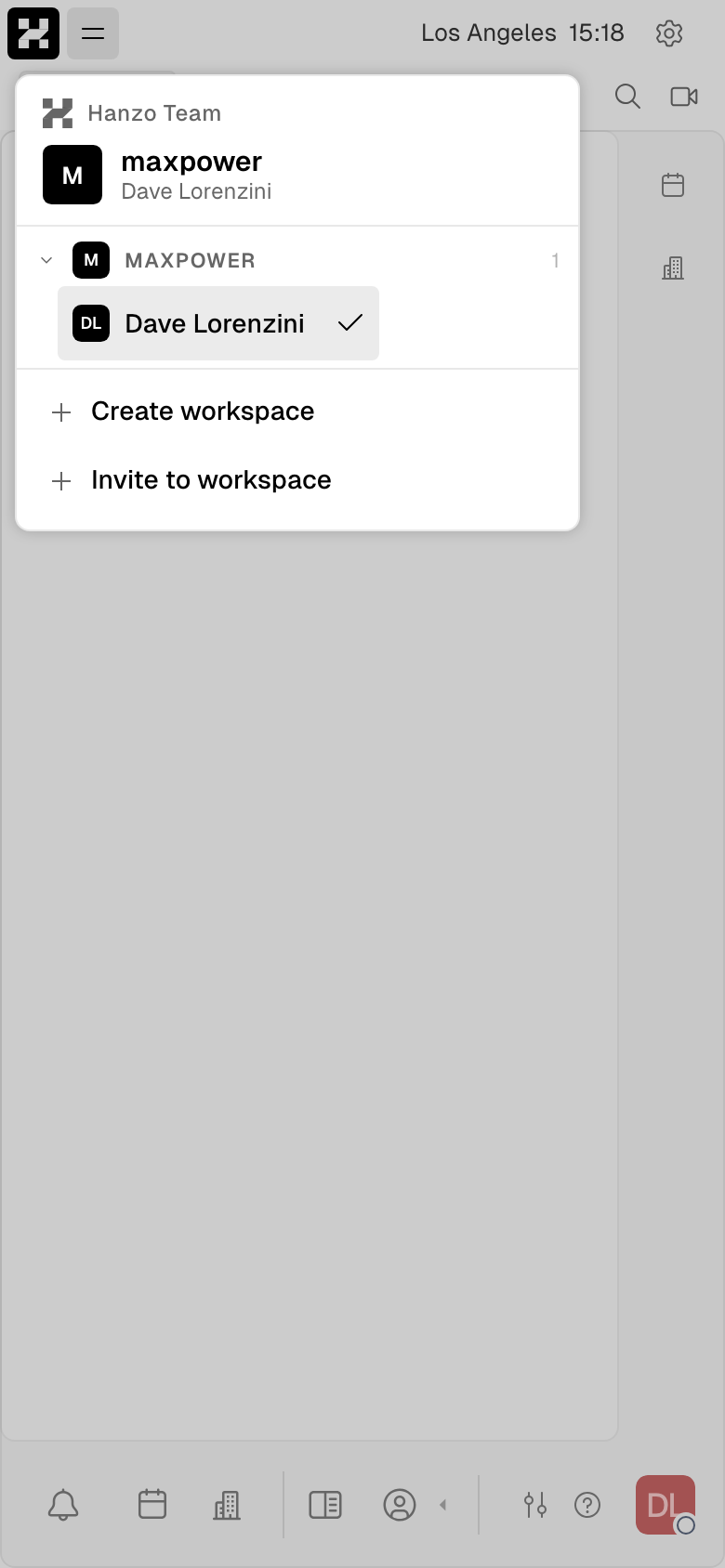
The workspace switcher on a phone.
The account menu
Your avatar at the bottom of the app rail opens the account menu — the hub for your identity, appearance, and the rest of Hanzo:
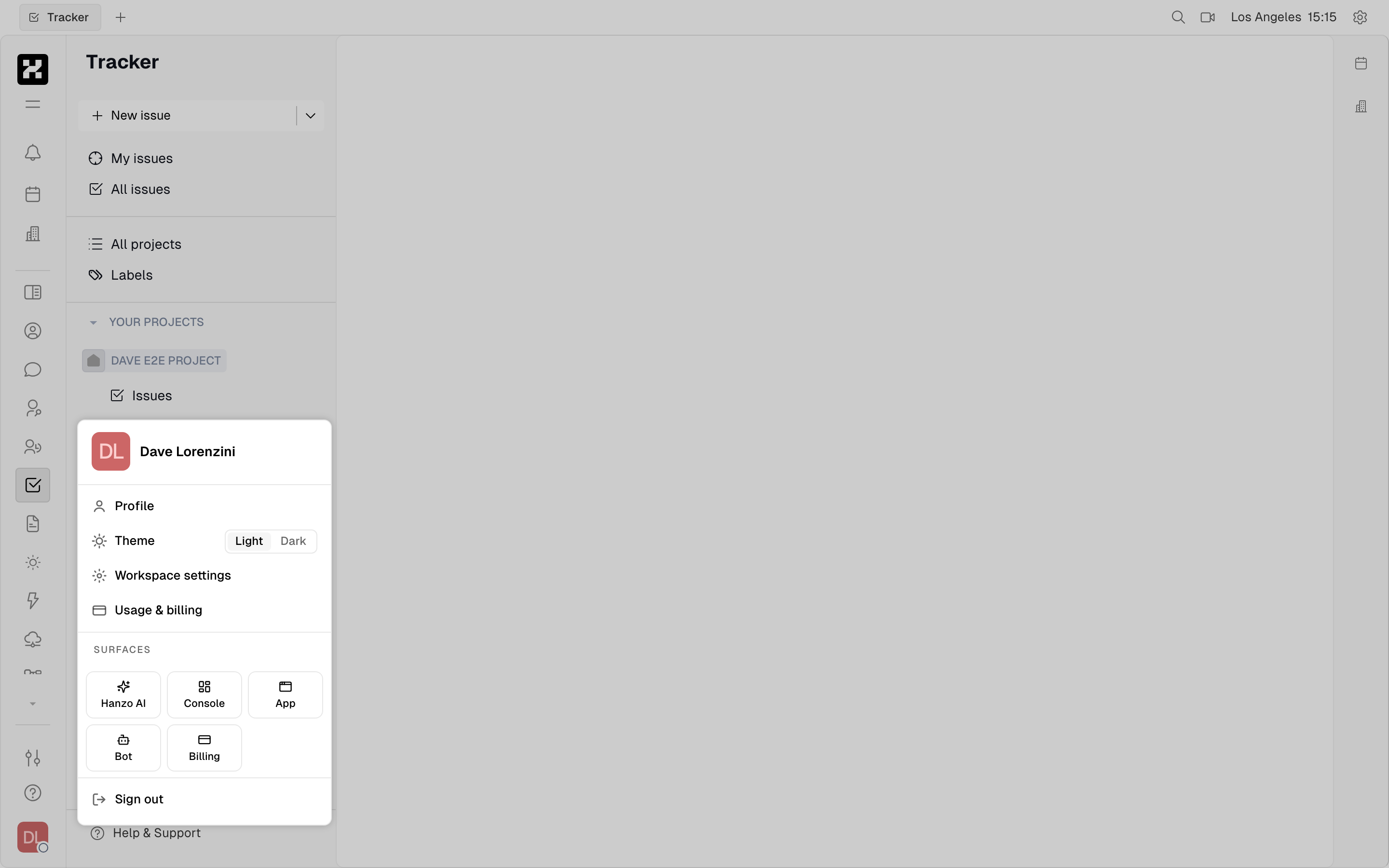
The account menu: Profile, a Light/Dark theme toggle, Workspace settings, Usage & billing, the Surfaces launcher, and Sign out.
- Profile — your name, avatar, and contact details.
- Theme — switch between Light and Dark.
- Workspace settings — jump into the workspace's configuration.
- Usage & billing — open your wallet and plan.
- Surfaces — launch other Hanzo products (see Learn the basics).
- Sign out — end your session.
On mobile: the account menu opens as a full-width sheet.
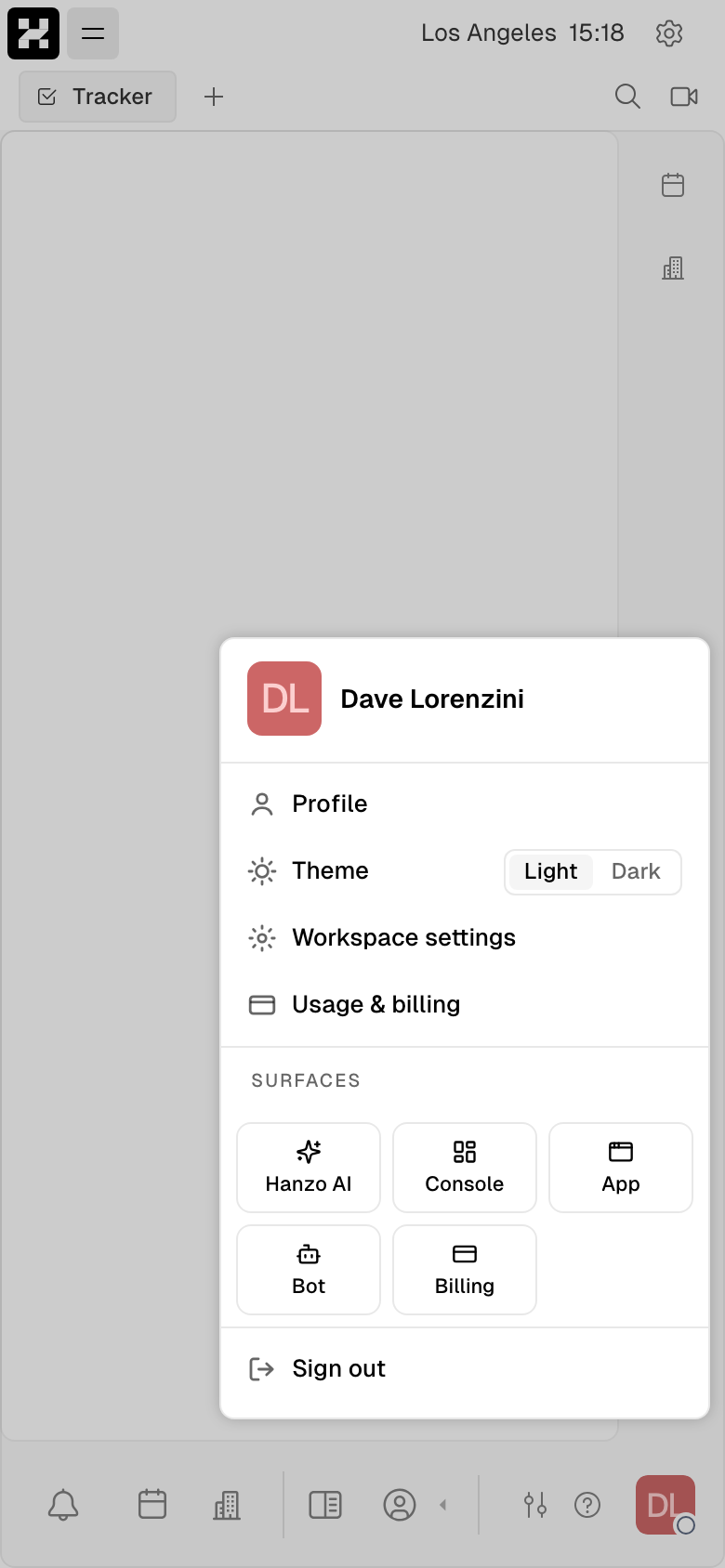
The account menu on mobile.
Account settings
Choose Profile (or the gear at the top right, then Account settings) to manage the parts of your Hanzo account that follow you into every workspace:
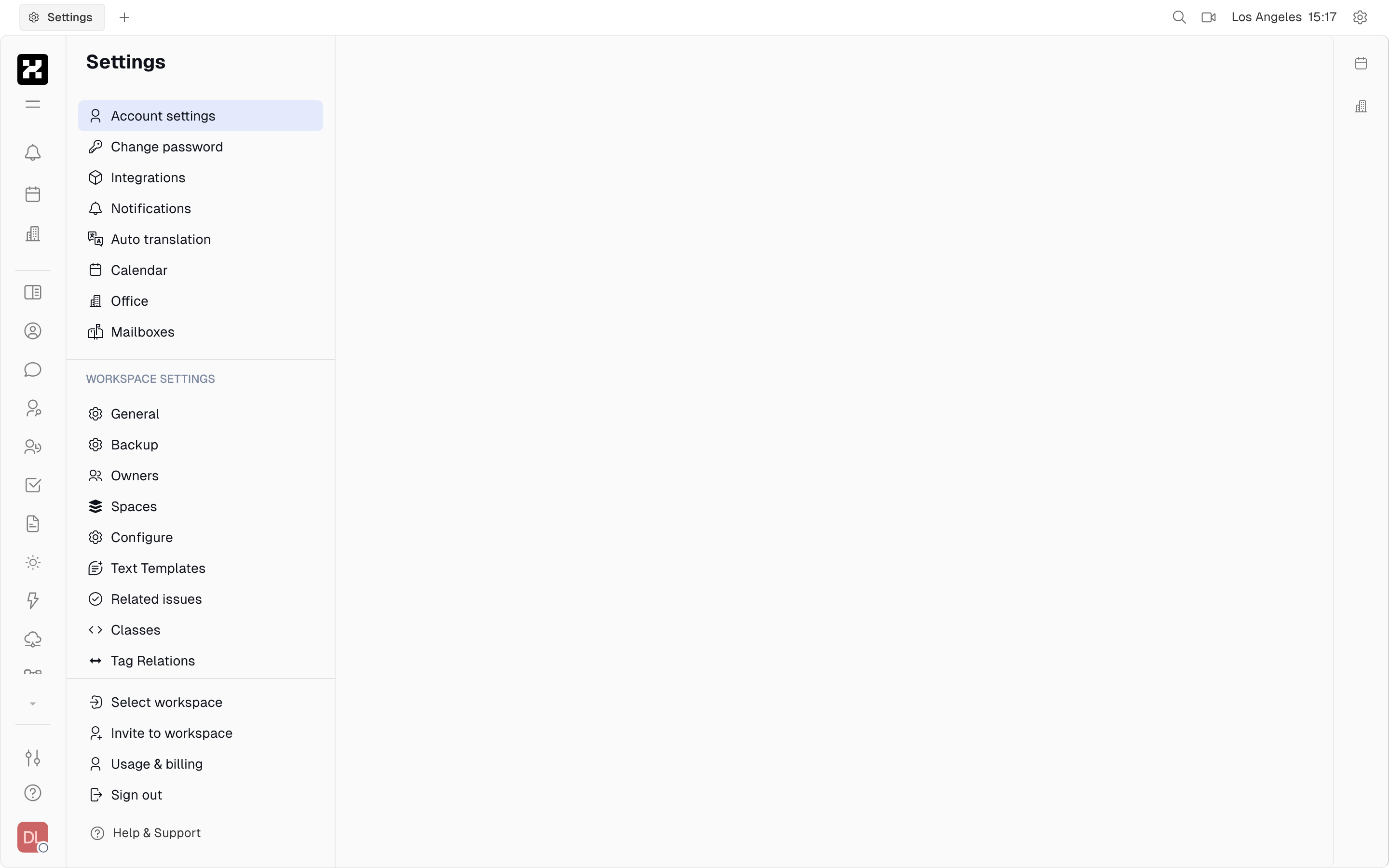
Account settings: your profile and password, plus Integrations, Notifications, Auto translation, Calendar, Office, and Mailboxes.
These are personal to you — changing your notification preferences or connecting an integration here applies across the organizations and workspaces you belong to, not just the one you're viewing.
On mobile: account settings scroll in a single column.
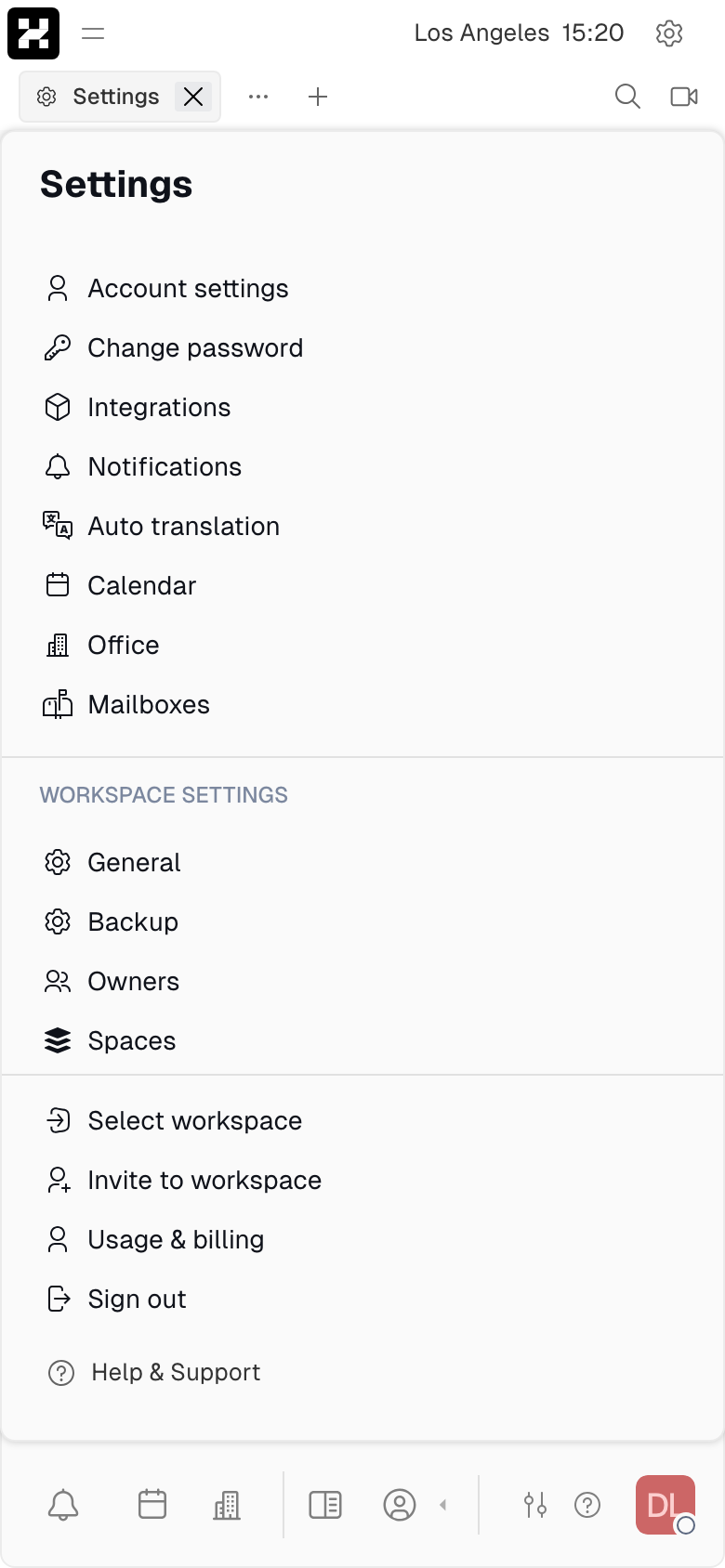
Account settings on a phone.
Joining and leaving
- Join — open an invite link and sign in, or accept an invitation sent to your email. See Workspace setup.
- Guests — people outside your organization can be invited as guests to specific content without full membership.
- Leave — you can leave a workspace from the account switcher; an administrator can also remove members in Settings → Members.
Administration
Workspace administrators manage members, roles, and enabled modules under Settings. Organization owners additionally manage the plan and billing that apply across the organization's workspaces.