Learn the basics
Navigate the Hanzo Team workbench and get to know each app.
Once you're signed in to a workspace, everything happens in the workbench — a single window with a global sidebar on the left and the active app on the right.
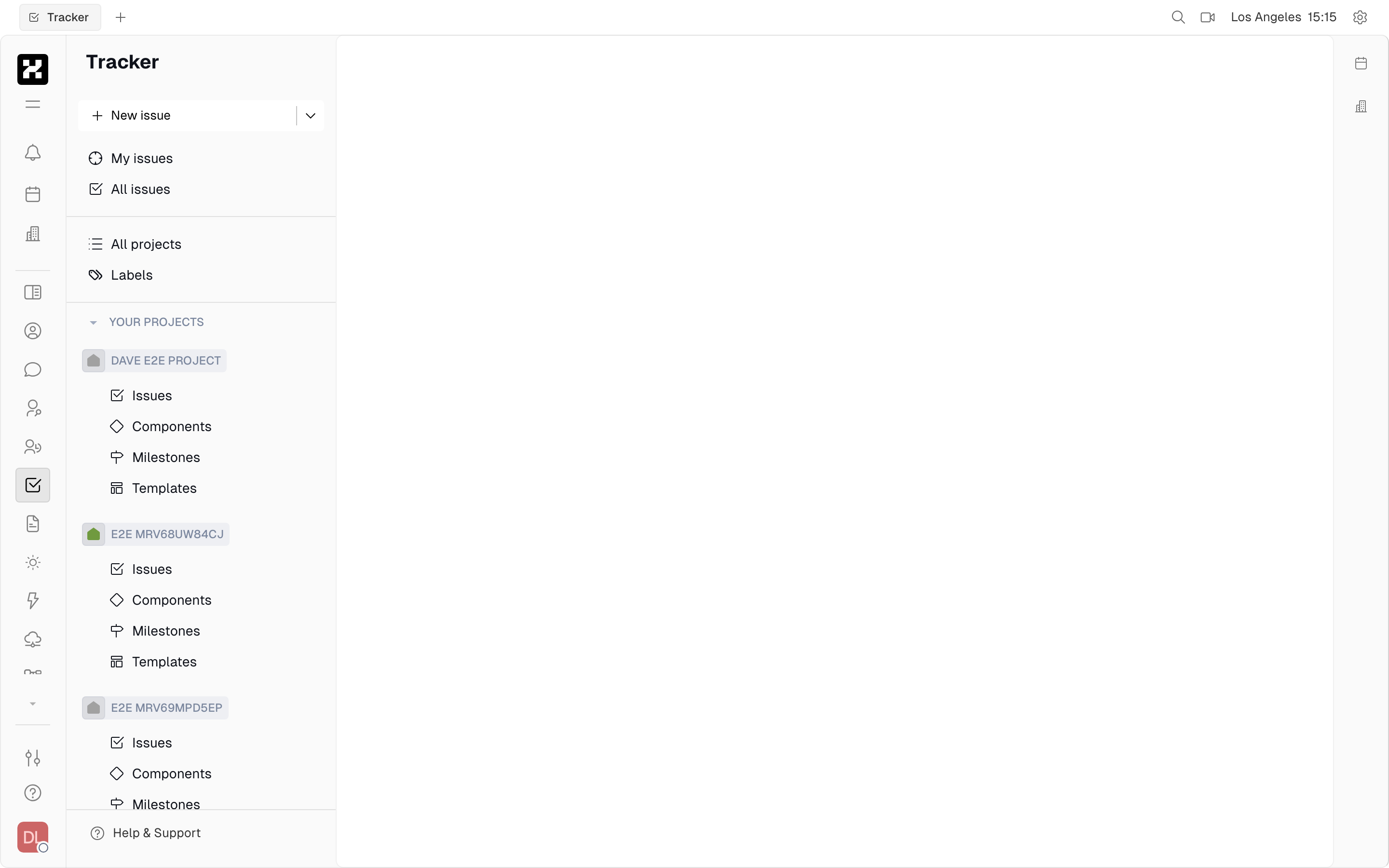
The workbench: the narrow app rail on the far left, the current app's navigator beside it, and the working area filling the rest.
The workbench
- Account switcher (top of the sidebar) — switch between your organizations and workspaces, manage members, and open workspace settings.
- App sidebar — one icon per app. Click an icon to open that app; each app has its own secondary panel for navigation.
- Inbox — a unified feed of notifications, mentions, and assigned work across every app.
- Search — jump to any issue, document, message, or contact.
- Settings — account preferences, workspace configuration, members, roles, and which modules are enabled.
The apps
| App | What it's for |
|---|---|
| Tracker | Projects, issues, sub-issues, milestones, and components. |
| Documents | Teamspaces and real-time collaborative editing. |
| Chat | Channels, direct messages, and threads. |
| Planner | Your personal daily schedule, built from action items. |
| Drive | Files and folders, shared with your team. |
| Contacts | People, companies, and teams. |
| HR | Employees, departments, and time off. |
| Virtual office | Voice and video conferencing rooms. |
| Cards | A flexible database of typed, tagged, related records. |
| Controlled Documents | Reviewed, versioned quality and technical documents. |
Depending on your plan and which modules are enabled, you may also see Recruiting, Test Management, Surveys, and Trainings. Enable or disable modules in Settings.
Action items connect the apps
The concept that ties Hanzo Team together is the action item. When an issue is assigned to you, an action item is created automatically in your Planner so you can schedule it. As you work through your day, the status of the underlying issue updates itself — you rarely need to move an issue from "Todo" to "In Progress" to "Done" by hand.
On mobile: the app rail and the app's own panel stack instead of sitting side by side, so you tap through one pane at a time. It's fine for quick checks; day-to-day work is smoother on a desktop.
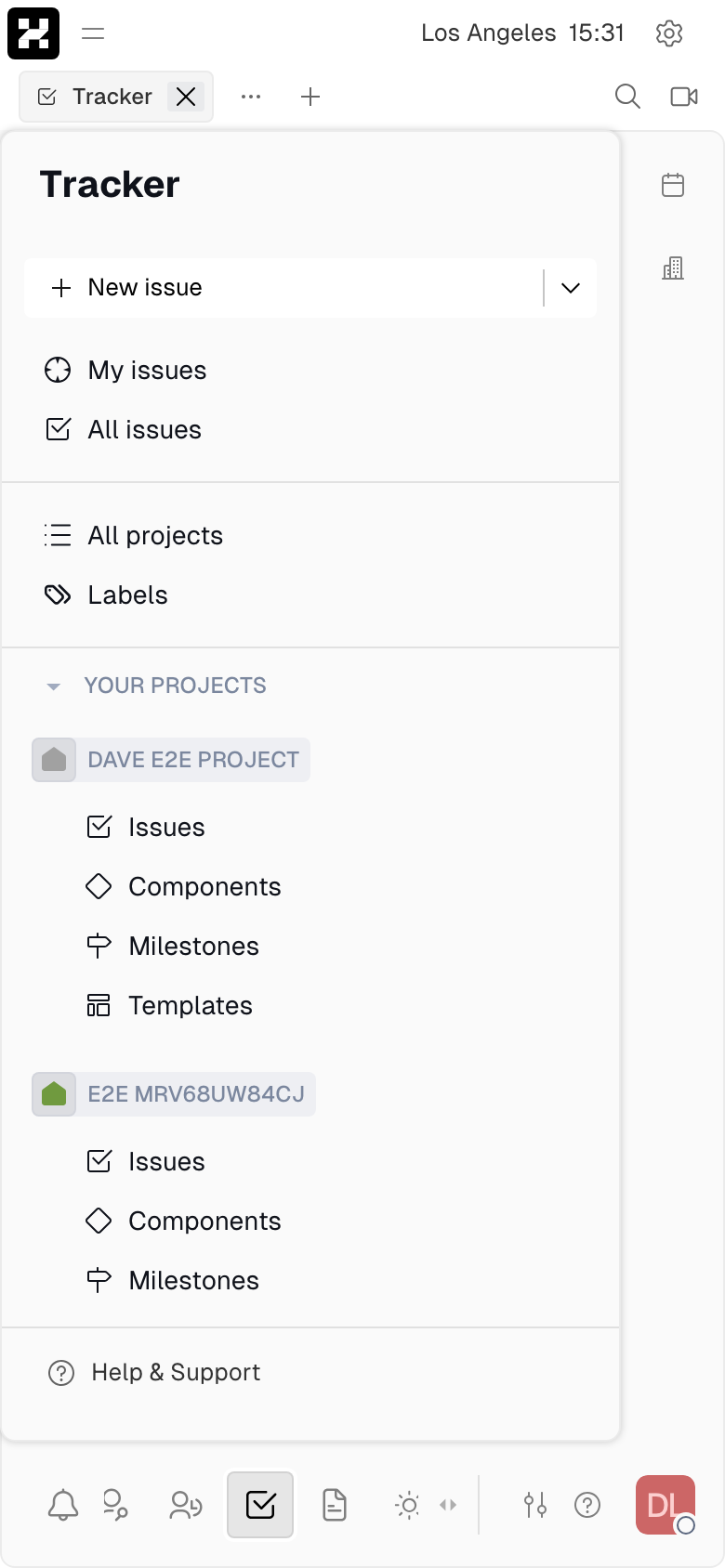
The workbench on a phone — panes stack into a single column.
Jump to other Hanzo surfaces
Your Hanzo account is the same everywhere, so the account menu (your avatar, bottom-left of the rail) doubles as a launcher for the rest of Hanzo. Open it and look under Surfaces:
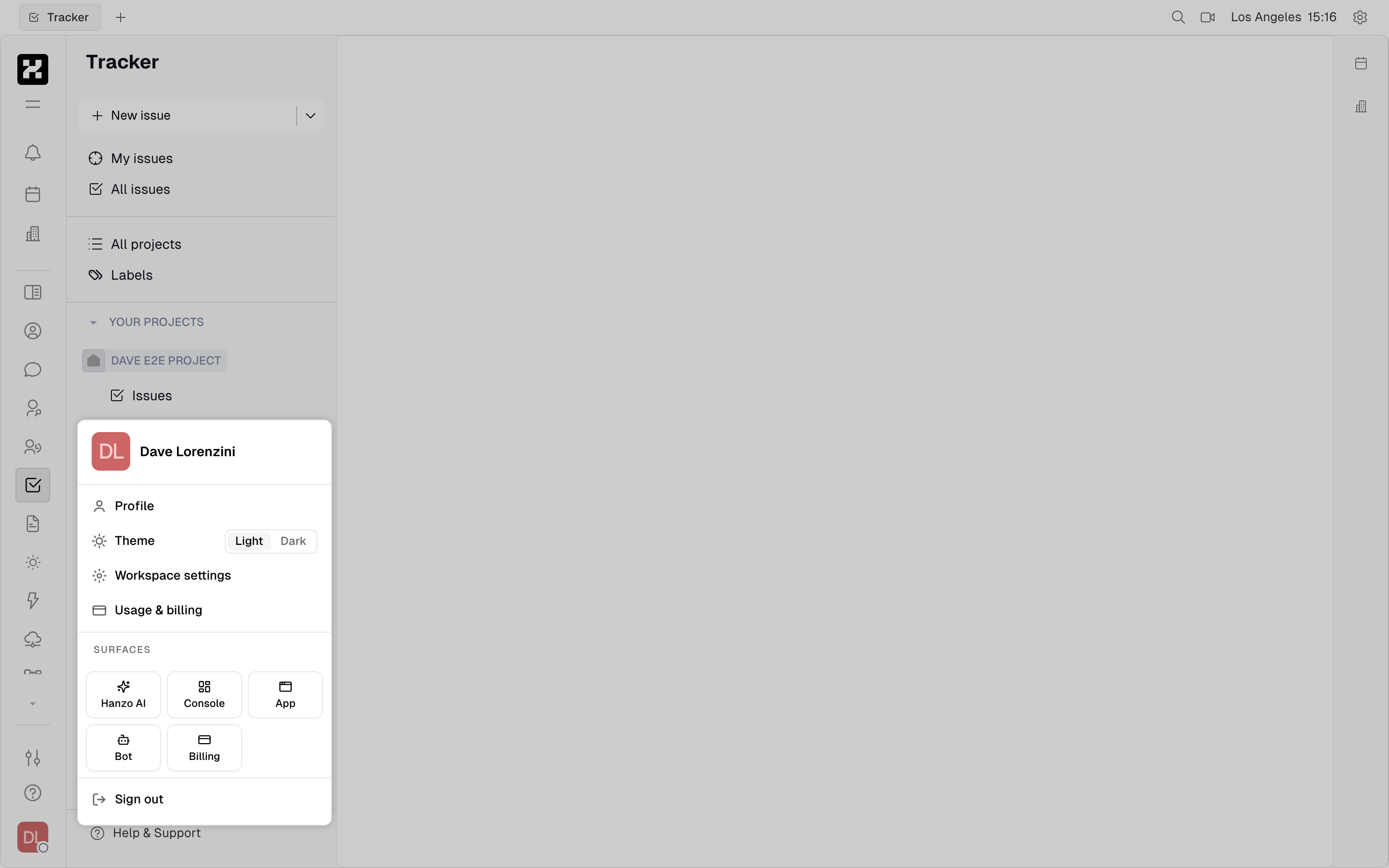
The account menu with the five-surface launcher, plus Profile, Theme, Workspace settings, Usage & billing, and Sign out.
- Hanzo AI — chat and models at hanzo.ai.
- Console — the developer console.
- App — the Hanzo app.
- Bot — your bots and agents.
- Billing — plans, wallet, and invoices at billing.hanzo.ai.
The same menu holds Profile, a Theme toggle (Light / Dark), Workspace settings, Usage & billing, and Sign out.
On mobile: the account menu opens as a full-width sheet, so every surface stays one tap away.
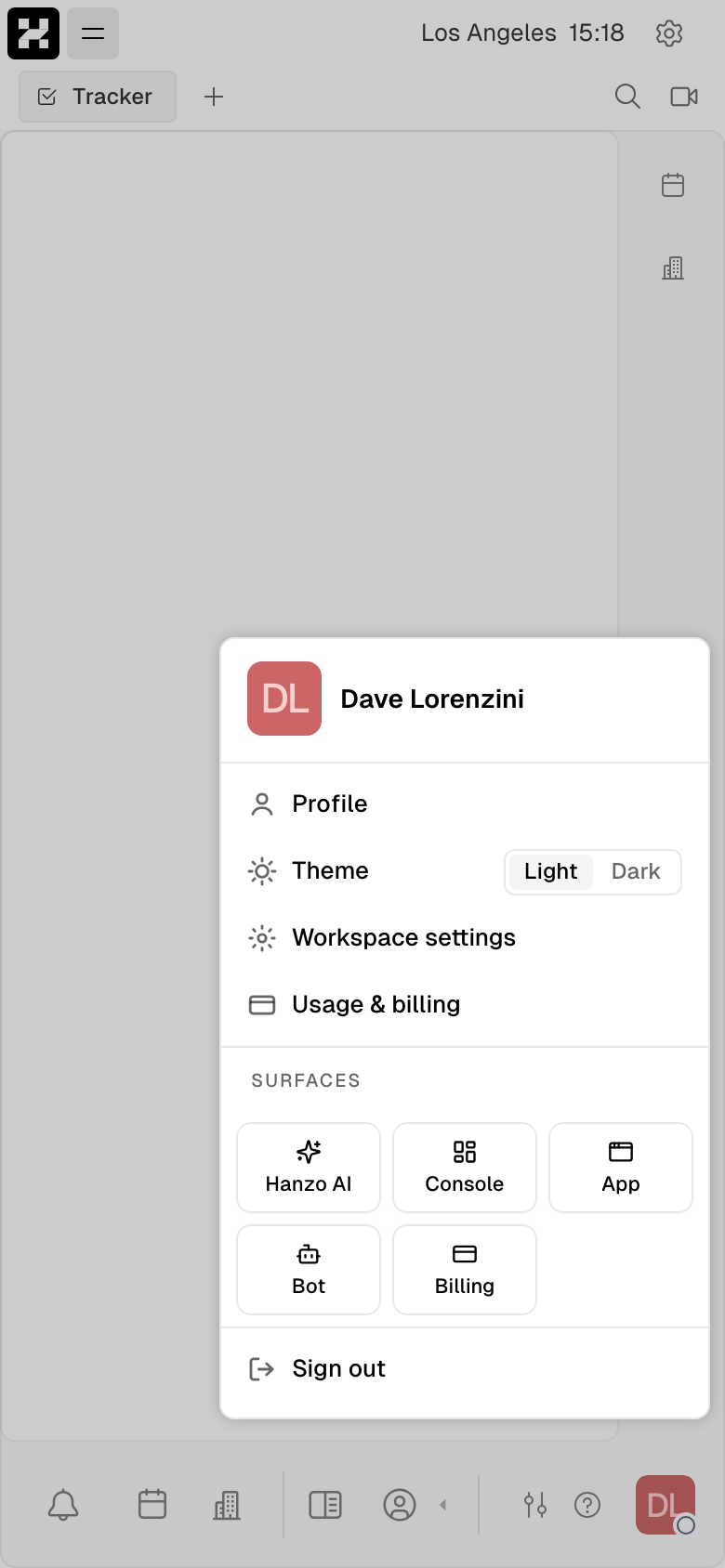
The launcher as a full-width sheet on mobile.
Do more
- Connect integrations — GitHub, Google Calendar, Gmail, and Telegram.
- Put AI to work — agents and bots inside your workspace.
- Configure your workspace — space types, roles, and task types.